AVI DVD Burner
Manual:
Other Products by CooolSoft : |
IntroductionAVI DVD Burner uses industry leading video audio CODEC technology to convert and burn DivX Xvid AVI movie and other popular internet video formats to DVD with just one click. AVI DVD Burner can retain maximum video and audio quality of the movie. For the AVI which has AC3 audio track, it can give you the same audio quality as the original DVD by using direct AC3 inject technology. By setting the start time and end time of the movie, you can burn just the part of the movie you need into DVD. The subtitle of AVI movies can also be converted and burned into DVD. With AVI DVD Burner, you can experience the better feeling of watching movie on TV than on computer. Now AVI DVD Burner not only supports converting avi video but also mkv rmvb asf wmv and many other movie formats. Highlight of AVI DVD Burner:
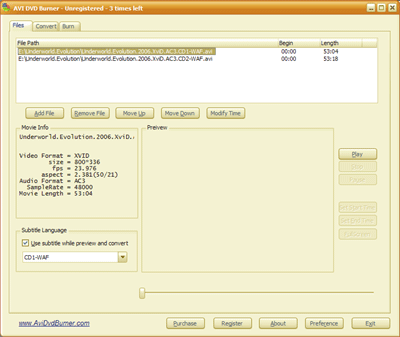
Screen shot of AVI DVD Burner:
|